Start quickly with Flare
GPT Image 2.5 Flare is selected by default for testing a subject, composition, and visual direction.
Generate from a text prompt or edit one reference image with GPT Image 2.5 Flare selected by default. Switch to Sunburst for a precision-focused option.
GPT Image 2.5 model workspace
The GPT Image 2.5 page uses the same generation workflow as the Omni Editor home page, with GPT Image 2.5 Flare selected by default. Start with a text prompt, or upload one image and describe the subject, background, layout, material, lighting, or style changes you need.
Keep Flare for quick exploration, or switch to GPT Image 2.5 Sunburst for precision-oriented work. The page stays focused on the reference image, prompt, aspect ratio, quality, and visible generation cost.
For controlled editing, separate the requested change from details that must remain stable. For example, preserve the subject, product shape, pose, and camera angle while changing one color, surface, background, or visual treatment.
Prompt inspiration
These inspiration images show prompt directions rather than guaranteed outputs. Break a direction into subject, composition, typography, material, color, and lighting, then adapt it to your project.
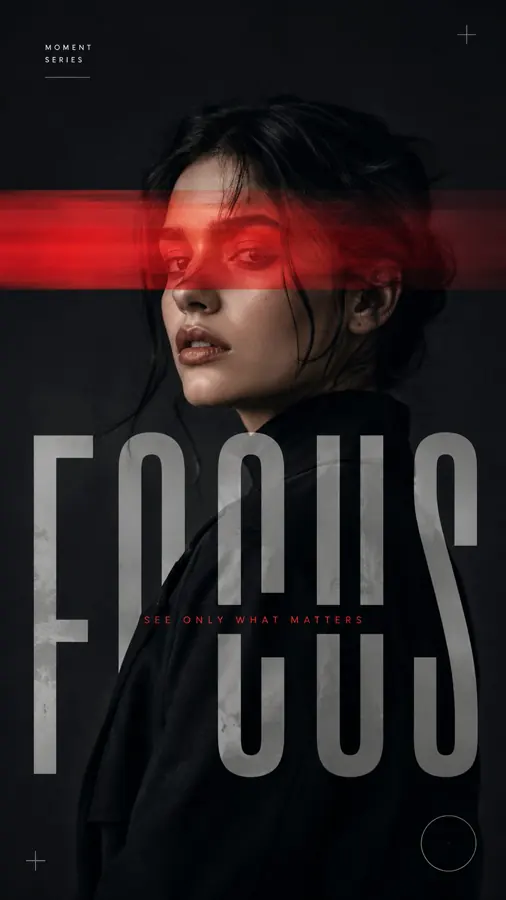
Define text hierarchy, subject placement, negative space, and a controlled palette.

Preserve the person and pose while changing texture, framing, and page structure.
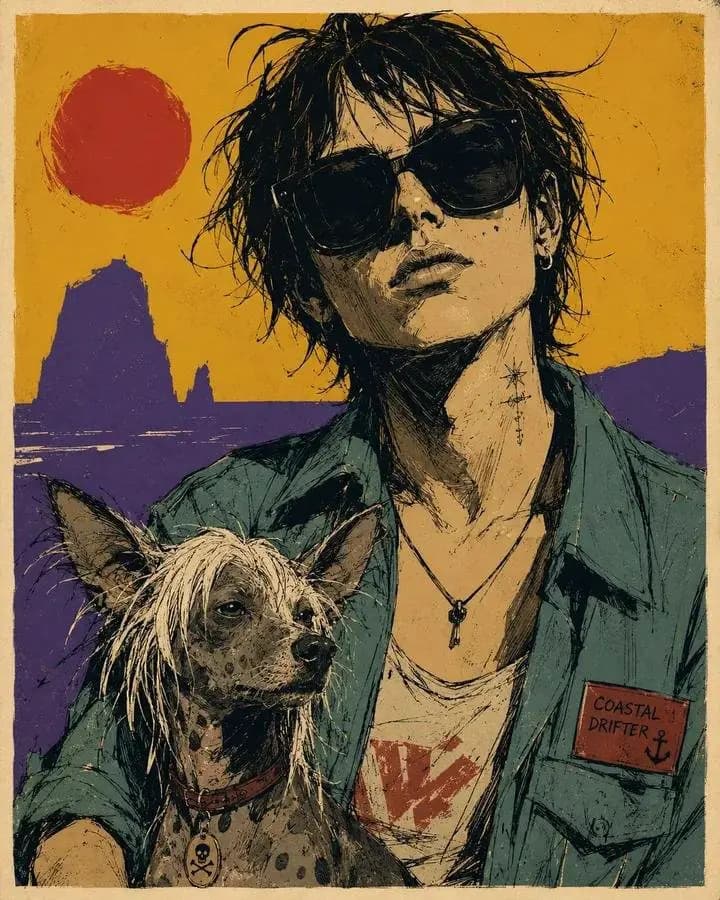
Keep the subject and composition while changing brushwork, color, and background.
GPT Image 2.5 benefits
GPT Image 2.5 Flare is selected by default for testing a subject, composition, and visual direction.
Choose Sunburst for precision-oriented work without changing pages or uploading the source again.
Credits, authentication, submission, preview, asset handling, and download reuse the home workflow.
Model selection
Both variants use the same controls. Flare supports faster everyday generation, while Sunburst is the precision-oriented choice.
| Workflow detail | GPT Image 2.5 Flare | GPT Image 2.5 Sunburst |
|---|---|---|
| Default on this page | Selected by default | Available in the model menu |
| Best fit | Fast ideation, social graphics, direction testing | Detailed edits, important visuals, higher-control tasks |
| Inputs in Omni Editor | Text prompt or one reference image | Text prompt or one reference image |
| Quality options | Low, Medium, High, Max | Low, Medium, High, Max |
GPT Image 2.5 workflow
The process matches the home image generator, while this model page keeps GPT Image 2.5 Flare selected when the workspace first opens.
Describe the image you want, or upload one JPG, PNG, or WebP reference when the result should follow an existing subject or composition.
Flare is selected by default for a faster workflow. Choose Sunburst when you prefer the precision-focused variant.
Choose an aspect ratio and Low, Medium, High, or Max quality. The Generate button shows the credit cost.
Sign in, generate, review the result, and download the finished image.
GPT Image 2.5 use cases
Brand and marketing
Specify brand color, subject placement, layout hierarchy, and visible wording for campaign concepts.
Product visuals
Preserve product geometry and branding while changing its environment, surface, props, or lighting.
Portrait content
Keep the subject and pose recognizable while exploring a new palette, style, or editorial layout.
Creative iteration
Revise the background, material, color, or emphasis without restarting from an empty prompt.
GPT Image 2.5 FAQ
Start creating
Return to the workspace, write a prompt or upload one reference image. Flare is already selected, and Sunburst remains available in the model menu.