One entry point for generation and editing
Generate from text when no source is selected. After an upload, the prompt becomes an editing instruction without moving to another tool.
Create from a text prompt or edit one reference image with GPT Image 2 selected by default.
GPT Image 2 workspace
The GPT Image 2 page uses the same image workspace as the Omni Editor home page, with GPT Image 2 selected by default. Start with a text prompt to create a new visual, or upload one reference image and describe changes to the subject, background, composition, material, lighting, color, or visible text.
The interface keeps the controls that directly affect the result: a prompt, one reference image, seven aspect ratios, and Low, Medium, or High quality. Medium is the default. Before submission, the Generate button shows the current credit cost so you can compare quality and budget without opening a technical settings panel.
For an image edit, separate what should change from what must stay consistent. For example, replace a product background, change a clothing color, or add a poster title while preserving identity, product shape, camera angle, and the main lighting direction.
GPT Image 2 prompt ideas
These inspiration images demonstrate ways to describe subject placement, layout, material, color, and lighting. They are prompt references rather than guaranteed outputs. Select the useful visual ingredients and rewrite them for your own project.
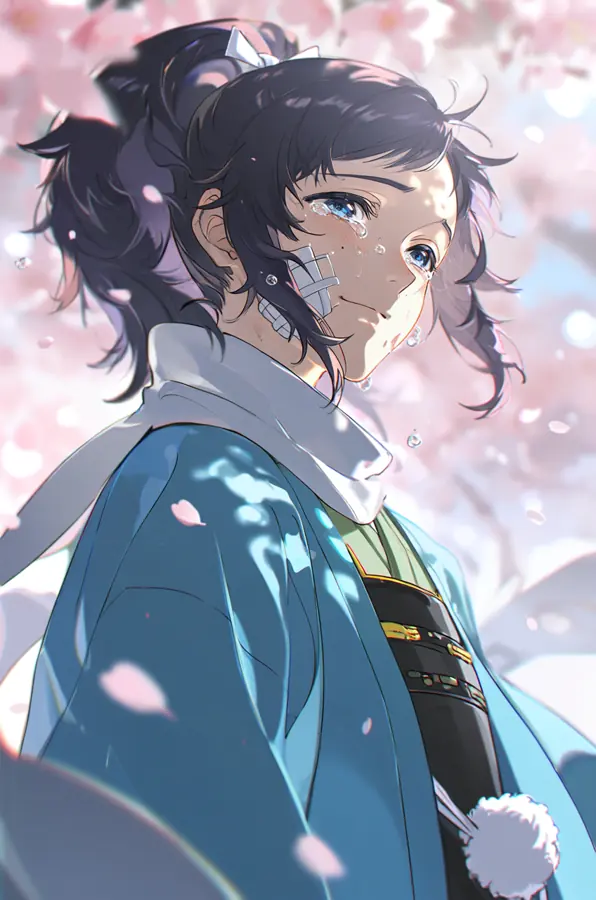
Define expression, clothing, petals, backlighting, and a soft palette so the character and setting share one emotion.
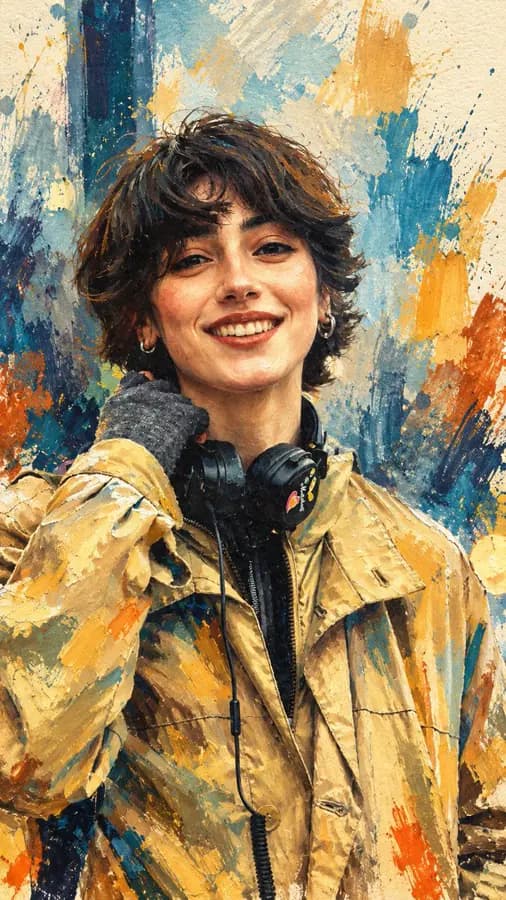
Preserve expression and clothing shape while defining thick brushwork, background color blocks, and warm-cool balance.
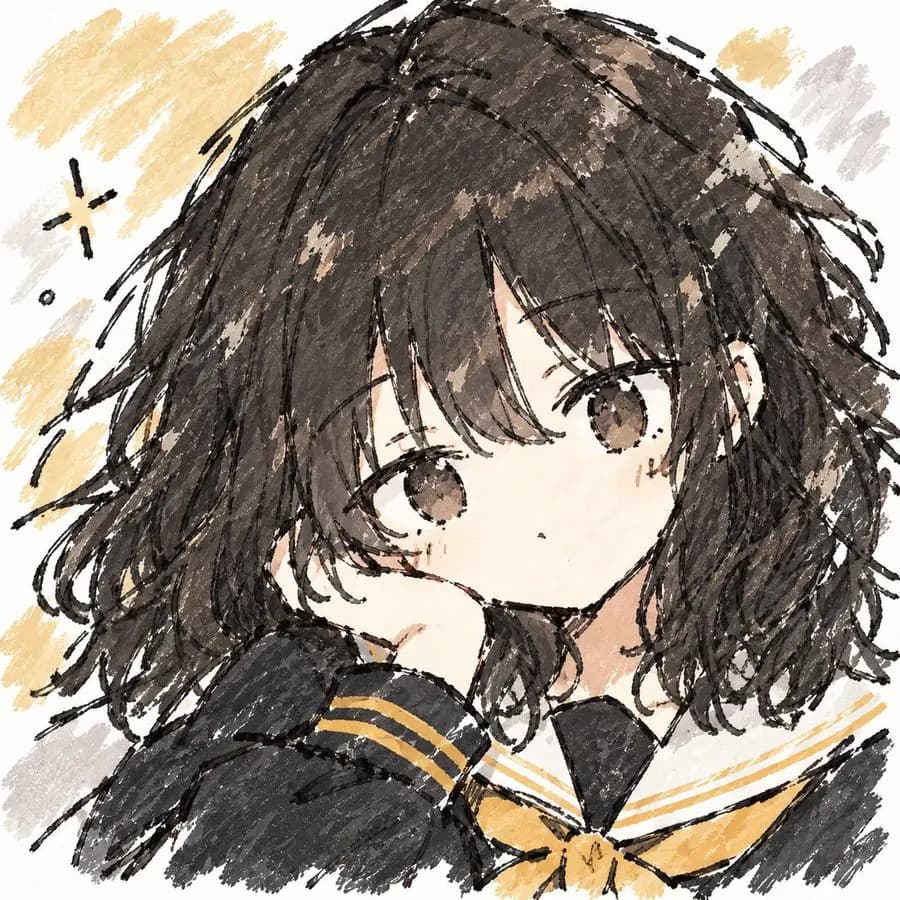
Define line weight, paper tone, limited color, and deliberate unfinished marks to keep one hand-drawn visual language.
GPT Image 2 workspace benefits
Generate from text when no source is selected. After an upload, the prompt becomes an editing instruction without moving to another tool.
Choose the ratio and quality that affect the result while provider credentials and request details stay on the server.
Low, Medium, and High use different credit amounts, and the action button updates before the task starts.
GPT Image 2 workflow
Move from prompt to download in four steps. GPT Image 2 is already selected when the page opens, so you can prepare the image task immediately.
Describe the subject, setting, composition, lighting, visual style, and any wording that must appear in the result.
Upload a JPG, PNG, or WebP image when you want to preserve an existing subject, layout, product, or visual direction.
Select one of seven aspect ratios and Low, Medium, or High quality. The action button displays the required credits before submission.
Sign in, submit the task, inspect the completed image in the result area, and download it to your device.
GPT Image 2 use cases
Marketing
Create landscape, portrait, or square visuals around a campaign theme, brand palette, and layout requirement.
Product
Keep the product shape and important details while changing the surface, environment, lighting, and mood.
Portrait
Preserve identity and pose while exploring clothing, location, color grading, photographic light, or illustration style.
Editorial
Build a clear focal point, useful negative space, and information hierarchy for an editorial layout.
Iteration
Use Medium to validate the subject and composition, then refine the prompt around details to preserve or change.
GPT Image 2 FAQ
Start with GPT Image 2
Write a prompt or add one reference image, then confirm the ratio, quality, and credit cost before submission.